Getting startediOS & AndroidUpdated 7 August 2026
Create your first countdown
Add an event, pick a date, and watch the days tick down.
Everything in Event Countdown starts with an event: a title and a date. Here is the whole flow.
Add an event
- Tap the + button at the bottom right of your events list.
- Give it a title. Short works best: Holiday, Wedding, Exam Day.
- Tap the date to choose when it happens. Events are set to today until you change them.
- Optionally, tap Add Time if the moment matters (a 4:00 PM party), or Add End Date for something that spans days, like a holiday.
- Tap the tick to save.
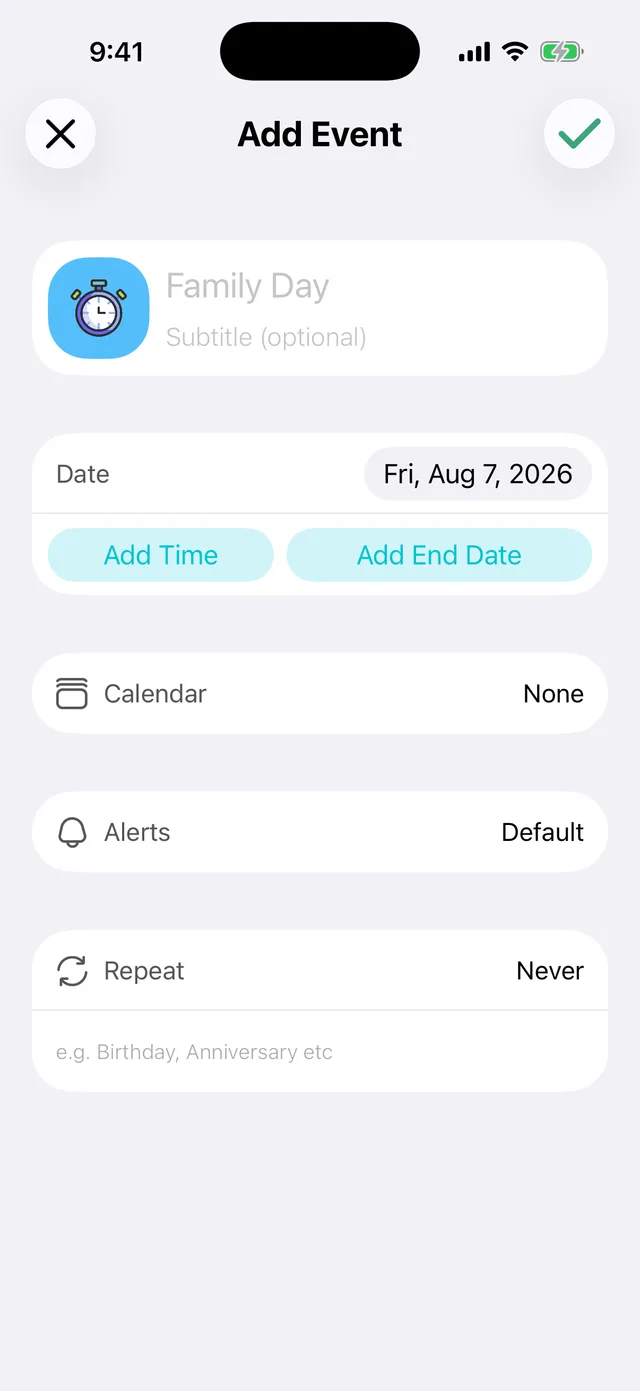
That is it. Your event appears in the list with a live count of the days, hours or minutes to go.
Make it yours
Tap the icon square next to the title to choose a colour and an icon. The colour follows your event everywhere: the list, Calendar View, and widgets.
What the numbers mean
The list shows time to go in the largest useful unit: days when it is far away, then hours, then minutes as the moment approaches. Tap any event to see the full countdown ticking in real time.
Did this not solve it? Contact us and include what you tried. In the app, Settings then Contact Support attaches the details that help us find your account.