Lock Screen and StandBy widgets
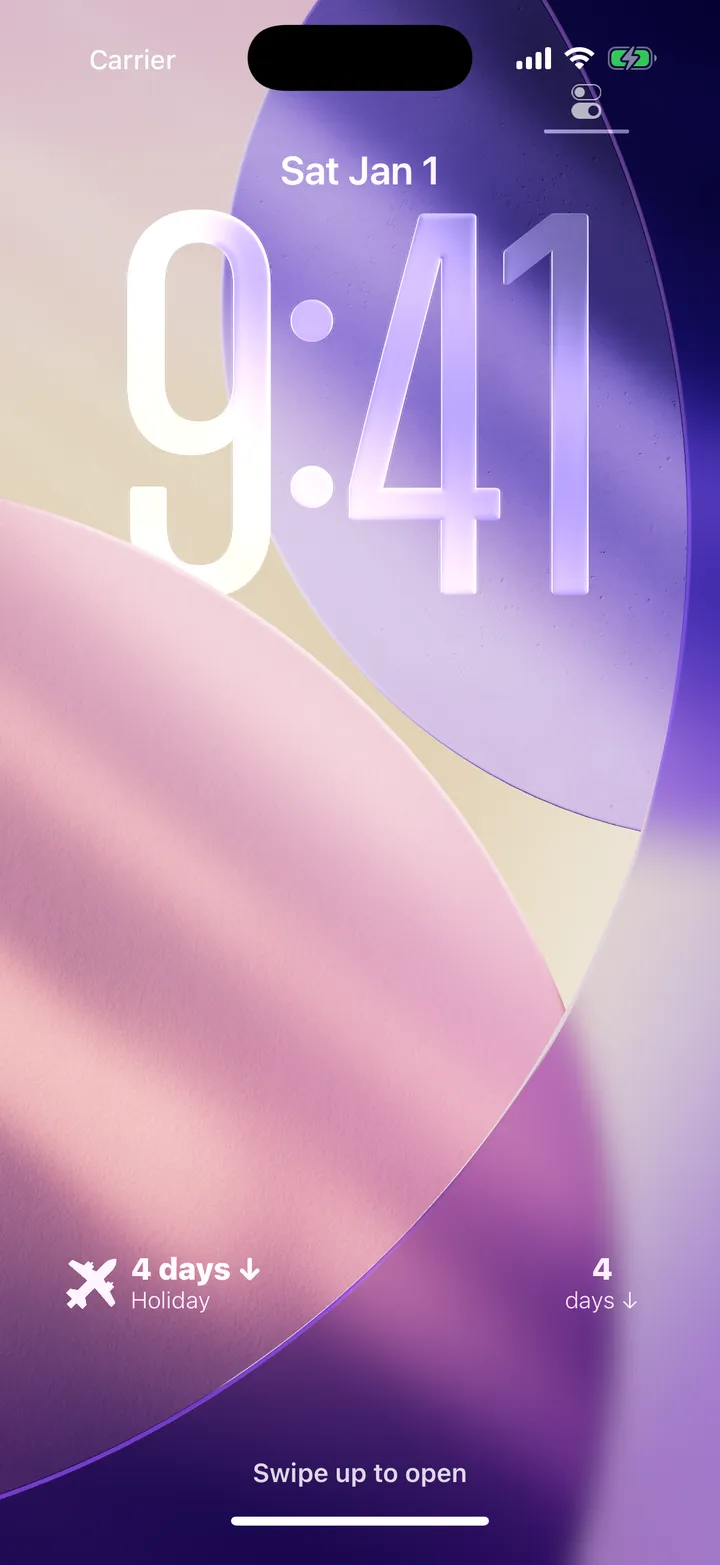
Countdowns below the clock on your Lock Screen, and big bedside countdowns while your iPhone charges.
Your Lock Screen is the screen you see most, and StandBy turns a charging iPhone into a countdown clock for the bedside or desk. Both are part of Premium.
Known issue on iPad: a bug in current versions of iPadOS stops Lock Screen widgets loading on iPad. They stay as grey placeholder boxes, and reinstalling the app or restarting the iPad does not clear them. We have reported it to Apple and it needs a fix from their side. Your iPhone Lock Screen is unaffected, and so are Home Screen widgets on iPad, so use those on your iPad for now.
Add a Lock Screen widget
- Touch and hold your Lock Screen, then tap Customise.
- Choose the Lock Screen, then tap the widget area below the clock.
- Find Countdown and add the Single Event widget in the shape you like: circular, rectangular, or the inline strip above the clock.
- Tap the widget to choose which event it counts down to.
StandBy
Put your iPhone on charge, on its side, and leave it still: StandBy fills the screen with widgets. Touch and hold the widgets in StandBy to customise them and add Countdown, then turn the stack to pick between them.
The automatic one
In the final hours before an event, a countdown card appears on the Lock Screen by itself. That is the Live Activity rather than a widget: see Live Activity and the Dynamic Island.
Did this not solve it? Contact us and include what you tried. In the app, Settings then Contact Support attaches the details that help us find your account.